How to monitor construction site quality without walking every floor

Quick Summary
Quality problems are easier to fix while the work is still open, but you cannot be on every floor at the right moment. This post shows how to capture each area right before it gets covered, review those captures from your desk and keep them as a searchable record you can pull up when someone asks what is behind a wall. DroneDeploy keeps every walk on the drawings by date, so that record is easy to find later.
You can only inspect what you can get to, and the trades keep working whether you are there or not. By the time you reach a floor, the framing you wanted to check may already be behind insulation and drywall, and the sleeves you meant to verify may already be under a slab.
When someone asks about that work later, whether it is the owner, the architect or another trade, you have two options. You can open the wall and pay for the rework, or you can try to prove what was there from whatever photos and notes happen to exist. Neither is a good place to be, especially when your inspection records are spread across phones, shared drives and binders.
The fix is to capture each area as soon as it is finished and before the next trade covers it, then keep those captures in one place you can search by location and date. This post walks through what to capture, how often, how to review it without leaving your desk and how to keep it as a record. DroneDeploy keeps every walk on the drawings by date, which makes that routine practical.
What to capture before the work is covered
A few areas come up again and again, because they are easy to inspect while they are open and expensive to inspect once they are closed.
Capture sleeves, embeds and reinforcement before the pour. Once the concrete is placed, the only record of what went into the slab is the one someone made beforehand.
Capture framed walls before the insulation and drywall go on. Conduit, plumbing and fire stopping stay visible for only a few days, but people ask about them for years.
Capture the ceiling void before the grid goes in. Above-ceiling MEP is hard to reach and easy to forget once the ceiling is closed, so a record from the day it was finished is the most practical way to check it later.
Capture each envelope or roof layer before the next layer covers it. Each layer gets its own dated record, which makes it easier to show what was installed and when.
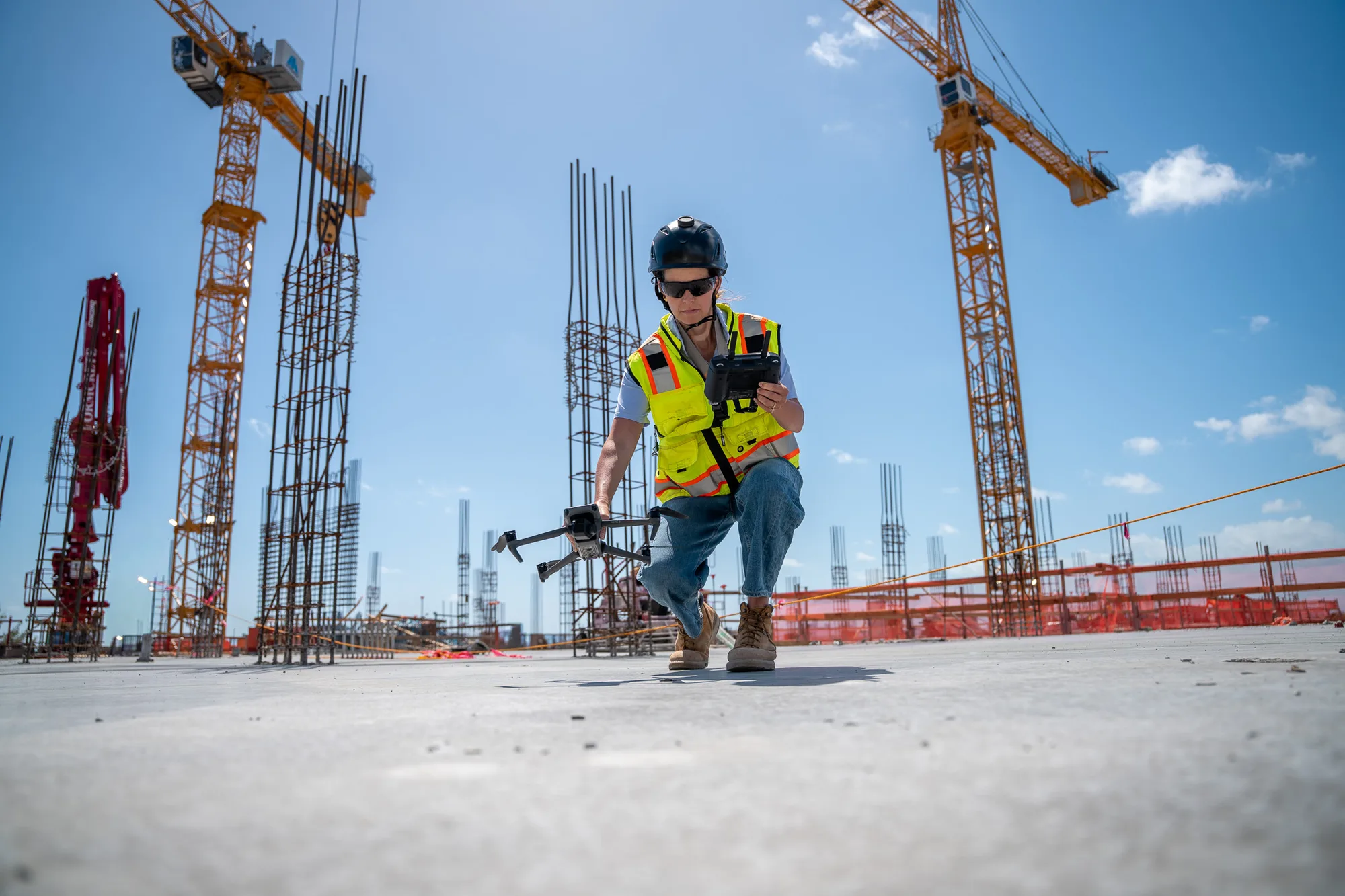
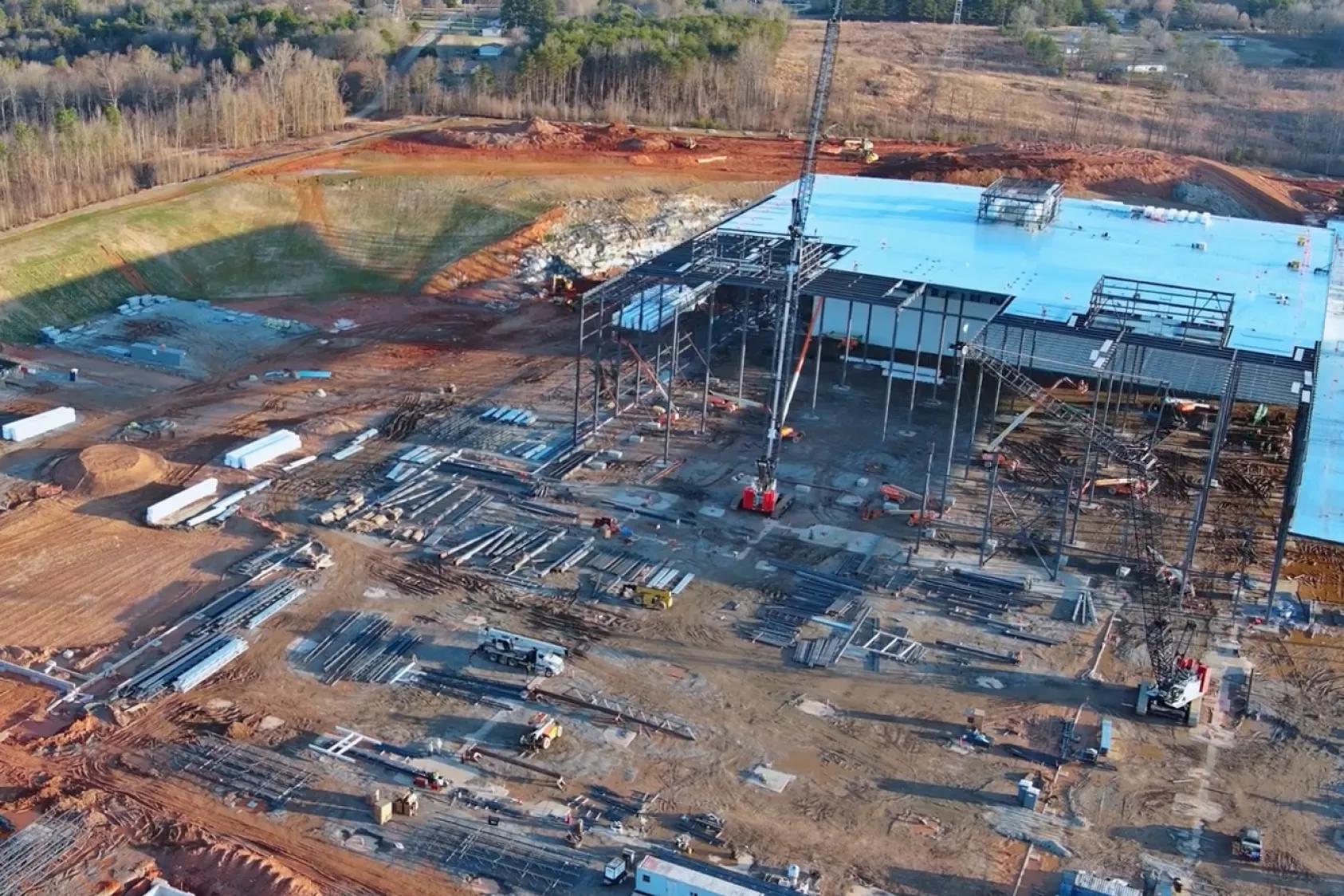
Fly earthworks and the exterior on a schedule. Aerial flights and docked drone automation keep the exterior record current without sending anyone out to fly.
Set a capture cadence around your hold points
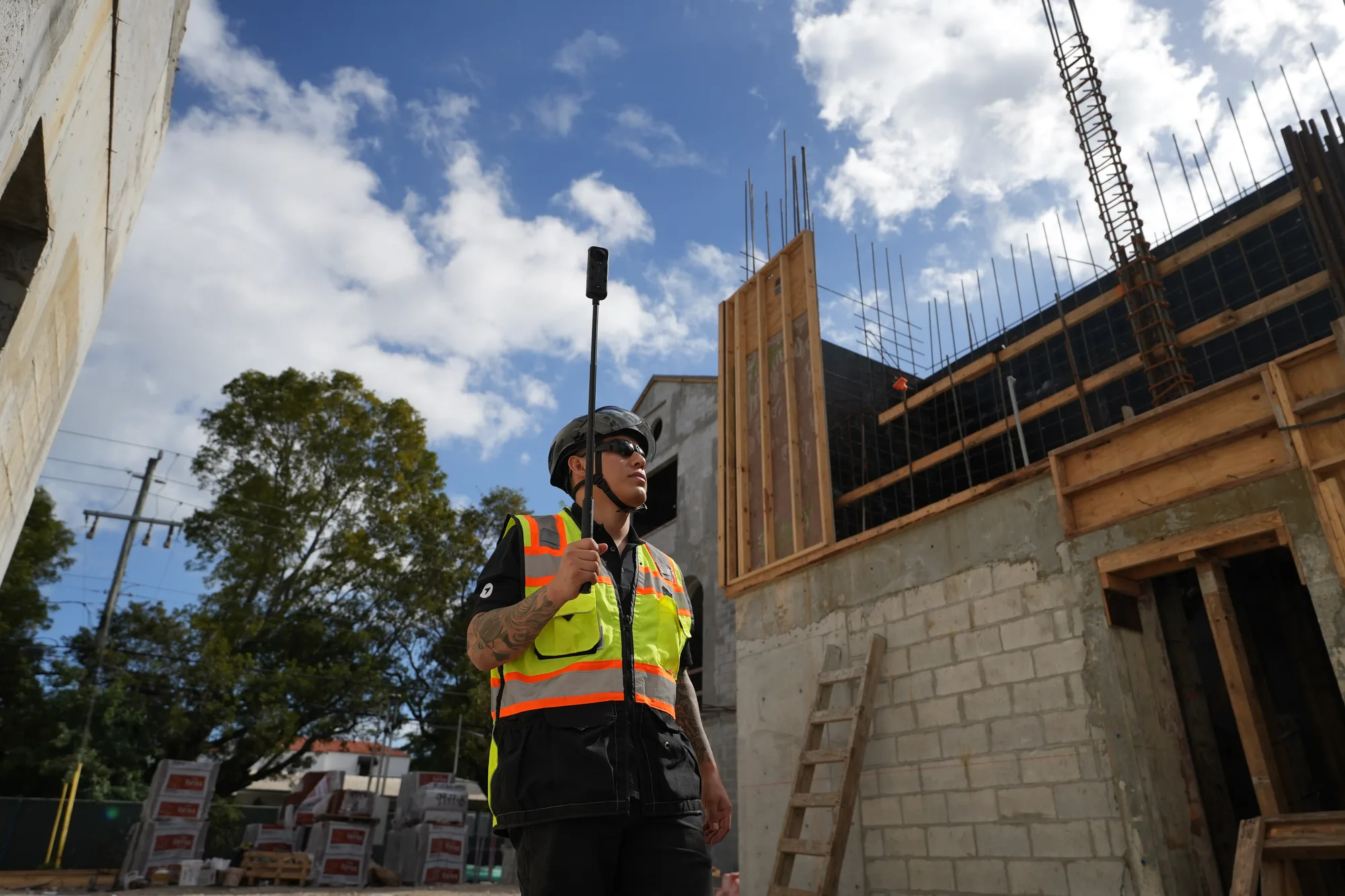
A simple routine works best. Walk each level once a week to keep a baseline, and add a milestone walk right before each close-in so you capture the work after the trade finishes and before the next trade covers it. A 360 camera covers a floor in one pass, so the extra walk adds minutes to your day rather than half of it.
You will not be able to capture everything at once, so start with the areas that carry the most risk. That means higher-risk trades, areas where you have had defects before and installs that happened out of sequence.
"With DroneDeploy, we can see the actual construction of sleeves and embeds before we place concrete slabs."
— Philip Riportella, Assistant Superintendent, Skanska
Review from your desk, and know what that cannot show
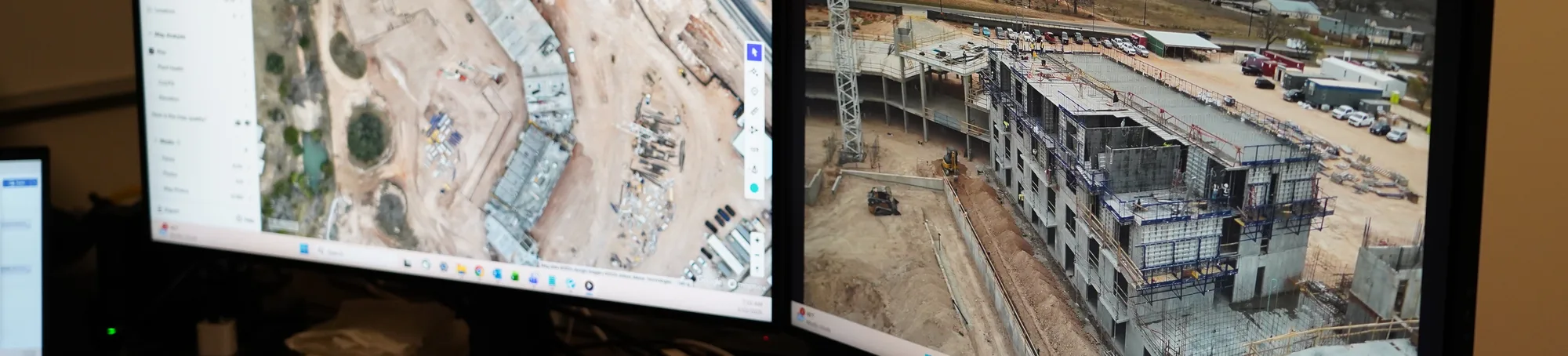
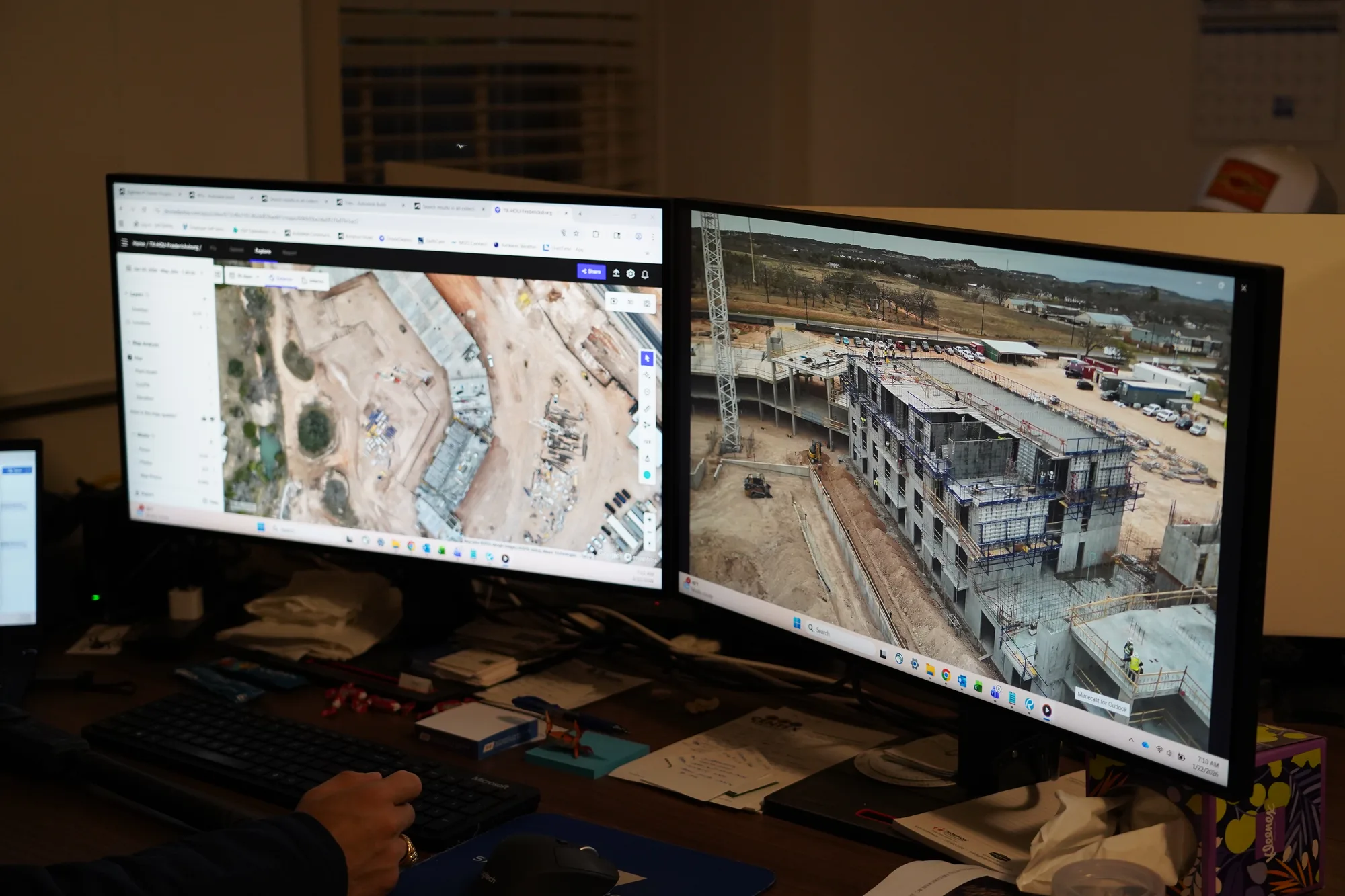
After a walk, open it next to the drawing for that level. You can step back through earlier dates to see when something changed, and if you have a BIM model you can compare what was installed to what was modeled. 360 walks aligned to the drawings let you do that review from the office instead of walking the floor again.
A walk shows you what is installed and where it sits. It does not replace the torque check, the cylinder break, the pressure test or the inspector's sign-off, so use it to decide where to send people and leave the tests to the people who run them.
Keep what you find as a searchable inspection record
When you find a problem, pin it to the image where it appears and give it a classification and a status. You can send it to Procore or Autodesk Construction Cloud so it lands where your team already tracks work, and custom issue types let every project log a defect the same way.
Because every capture is filed by level and date, a question about a wall can start with the walk from that week instead of a search through camera rolls and shared folders. PDF reports cover formal submissions, and an offline viewer carries the record into handover.
If you are choosing a tool for this, what to look for in construction quality control software covers the evaluation. For how remote review fits progress tracking, see how virtual inspections work on active jobsites.
A first month on one project
Pick one project and one cadence before you roll anything out. Here is a simple way to start.
- Choose the hold points that matter most on the project and capture before each one.
- Decide who walks and who reviews.
- Set up your issue types before the first walk.
- Bring the captures to your next OAC meeting and use them to agree on what is signed off.
After a month you have a dated record of every close-in on that project, and your next project starts from a routine that already works.
The bottom line
You cannot be on every floor at the right moment, but you can have a record of what was there. Capture each area before it is covered, review it from your desk and keep it where your team can search it. See how teams document quality with DroneDeploy. Book a demo.

FAQ
Quality assurance is the process that prevents defects, such as standards, procedures and training. Quality control is the verification of the work against specifications and acceptance criteria, which is where inspections and capture fit.
The contract, specification and hold points set the required inspections. As a working cadence, many teams capture weekly and add a milestone capture before each close-in.
Ready to learn more?
Contact sales to see how DroneDeploy can give your teams the power to document and analyze your sites from the air and ground – all in one AI-powered platform.